
We've already done the hard work of uploading a file into an IronBox container for you with our IronBox REST scripts for Python. Follow the steps below to configure the IronBox REST client Python scripts to upload a file or directory to IronBox: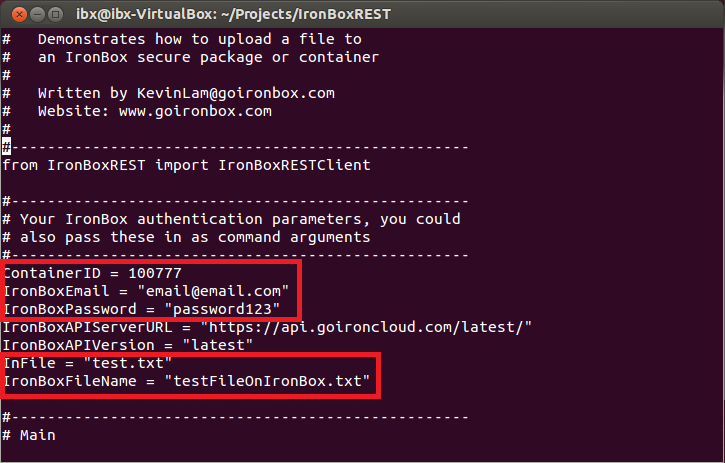
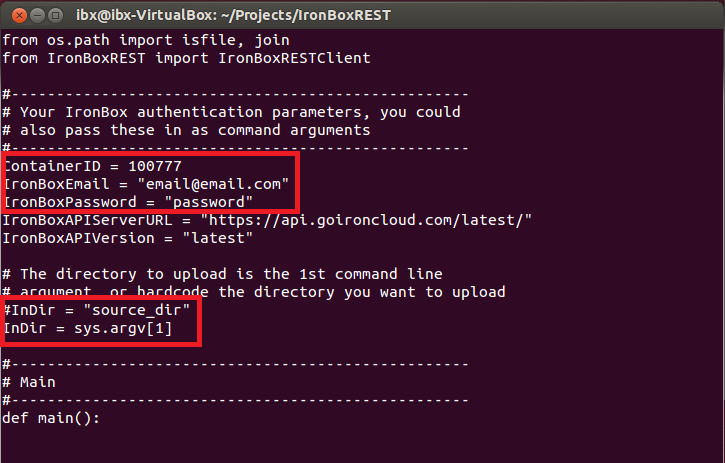
If you wish to upload the contents of a directory, use the IronBoxUploadDir.py script and follow the same steps as above. Note that you will not have to specify an InFile or an IronBoxFileName value. Rather you will need to specify the InDir field which points to the directory you wish to upload (example: /home/user/directory_name).
- Download the Python scripts from the IronBox REST Python clients directory.
- Install any dependencies by running sudo pip install -r requirements.txt.
- Edit the IronBoxUploadFile.py file.
- Edit the ContainerID field to the ID of the IronBox container you are uploading to.
- Edit the IronBoxEmail field to the email address you use to access IronBox.
- Edit the IronBoxPassword field to the password you use to access IronBox.
- Edit the InFile field to the file path of the file you are trying to upload (Example: /home/user/file.xt)
- Edit the IronBoxFileName field to the name you want to assign to the file you upload on IronBox (Example: securefile.txt).
- Save the IronBoxUploadFile.py file.
- Run the Python script, python IronBoxUploadFile.py.
If you wish to upload the contents of a directory, use the IronBoxUploadDir.py script and follow the same steps as above. Note that you will not have to specify an InFile or an IronBoxFileName value. Rather you will need to specify the InDir field which points to the directory you wish to upload (example: /home/user/directory_name).
Comments
0 comments
Article is closed for comments.