
The IronBox Secure File Transfer Wizard can help you create a secure package where you and your customers can both upload and download data securely.
- Log into your IronBox account.
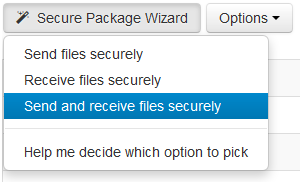
- In your Secure File Transfer tab, click the Secure Package Wizard button.
- Select the Send and Receive Files Securely option.
- In the New Secure Package Name, enter a name for the secure data exchange area.
- In the Password field, enter a strong password to protect the secure data exchange area. Your customers will require this password for access.
- In the Email Address(es) field enter the email addresses of your customers. Separate multiple email addresses with a comma (,).
- (Optional) Enter your customer’s mobile numbers to SMS text the password to.
- (Optional) Enter an optional secure message.
- (Optional) Select files from your computer to upload into the new secure package and click the Start Upload button.
- Click the Send Files Now button.
- An email (you will be Cc:d) with an Easy Access access Web link will be sent out to the customers emails provided. Instruct your customers to click the link and they will be able to exchange data with you securely.
Comments
0 comments
Article is closed for comments.